
It can happen that you forget your WordPress administration login password.
If this ever happens to you, here are the steps to follow to change your password. You can do this:
- simply by using N0C WP;
- by using the command line in
wp-cli; - from your database; or
- by using the command line in MySQL.
How to Change Your Password With N0C WP
This is the simplest method.
- In N0C, go to CMS / Applications -> N0C WP.
- Click on the eye-shaped Details icon under My WordPress websites, next to your site:

- Click on the pencil-shaped Edit user icon next to the user whose password you wish to change:

- Modify the password and click on the SAVE button:

Reference : see the section on How to Modify Users’ Attributes and Roles in the article How to Use WordPress.
Change Password in Command Line with wp-cli
As explained in the article How to Manage WordPress in CLI with wp-cli :
- Connect to the server in SSH.
- You may also open N0C Terminal (How to Use the MG Panel Terminal).
- Navigate to the relevant WordPress folder (optional).
- If you want to change the WordPress password in the current folder, please enter the following command:
wp user update admin --user_pass=newpassword
- If you want to change the WordPress password in public_html without having to navigate there, please enter the following command:
wp user update admin --user_pass=newpassword --path=public_html/
Change Password From Database
To change the password with phpMyAdmin:
- Open phpMyAdmin (please refer to the article How to Manage Databases with PhpMyAdmin).
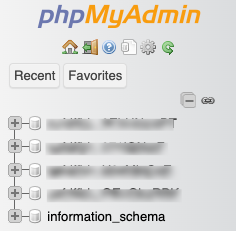
- Select the database associated with your WordPress:
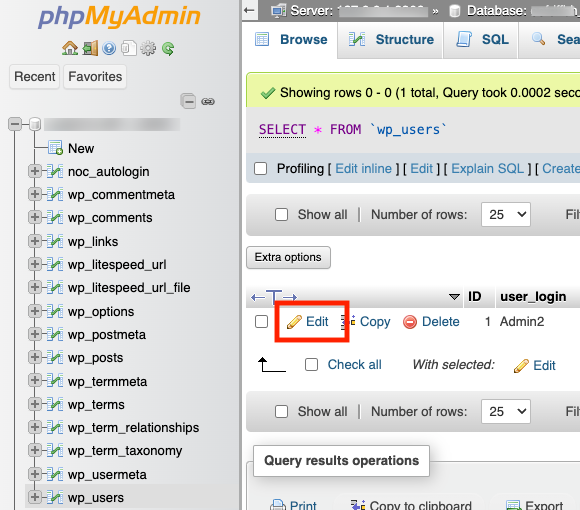
- Click on the wp_users table (the prefix may be different from wp, depending on how your WordPress has been configured):

- Locate your administrator username, and click on the Edit button next to it:
- Set the new password. To do so, proceed as follows:
- locate the user_pass field;
- choose MD5 from the drop-down list under the Function column;
- enter your new password in the text field under the Value column; and
- click on the Go button at the bottom of the window.

Changing the Password From the Command Line in MySQL
To access your WordPress database via the MySQL command line, you need to know your database credentials. These credentials are usually stored in the wp-config.php file, which is located in the root directory of your WordPress installation.
Here are the steps to follow:
- Connect to your server via SSH (please refer to the article How to Create an SSH Key and Connect to an Account Remotely) and enter the MySQL command line using your database credentials.
- Use the following command, replacing user with your user, then enter your main account password when prompted:
mysql -u user -p
- Select your WordPress database by executing the following command line query (replace wordpress_db with the name of your database):
USE wordpress_db;
- Make a SELECT to be sure to modify the right row:
SELECT * FROM wp_users WHERE user_login = 'user';
- Run the following query to change your password (replace new_password with the desired password, and user with your administrator username):
UPDATE wp_users SET user_pass = MD5('new_password') WHERE user_login = 'user';